What Charlie can do
Once connected, Charlie will be able to:- Respond in-thread with answers and code. Ask @Charlie follow-up questions or clarifications right on the issue.
- Enrich the ticket with deeper context.
@Charlie, enrich this issuepulls stack traces, touched files, recent commits, and related PRs. - Draft a ready-made implementation plan.
@Charlie, write an implementation planreturns a step-by-step roadmap with code changes, tests, and rollout notes. - Open a pull-request from the issue. Mention
@Charlie, open a PR for thisor assign the issue to him—he spins up a branch, pushes commits, and opens a PR that references the ticket. - Keep tracking in lockstep. Commits, PRs, and issue states stay linked automatically, and Charlie surfaces missing requirements when reviewing the PR.
- Understand your team’s priorities. Has a high‑level understanding of the initiatives and projects that are in flight.
Daemons and Linear events
After you connect a Linear workspace, issue events can wake daemonwatch conditions when the issue’s Linear team is mapped to the repo. Use this when issue hygiene should happen from Linear activity, not only when someone explicitly asks Charlie to help.
Supported routed Linear event families include:
- issue creation (
Issue.create) - issue mentions
- issue comments
- issues assigned to Charlie
- triaging newly created issues into labels, owners, or reproduction requests
- reviewing new issue comments for blockers, reproduction details, ownership changes, or priority changes
- asking for missing details when an issue does not include enough context to act safely
- keeping follow-up hygiene current by finding stale asks, unclear owners, or mismatched linked PR state
watch wording for issue-created or comment-created workflows, for example:
schedule and inspect Linear state during execution:
Quick Setup
Follow these steps to connect your Linear workspace with Charlie:1
Navigate to Integrations
Go to dash.charlielabs.ai and sign in. Select your organization, then open Integrations.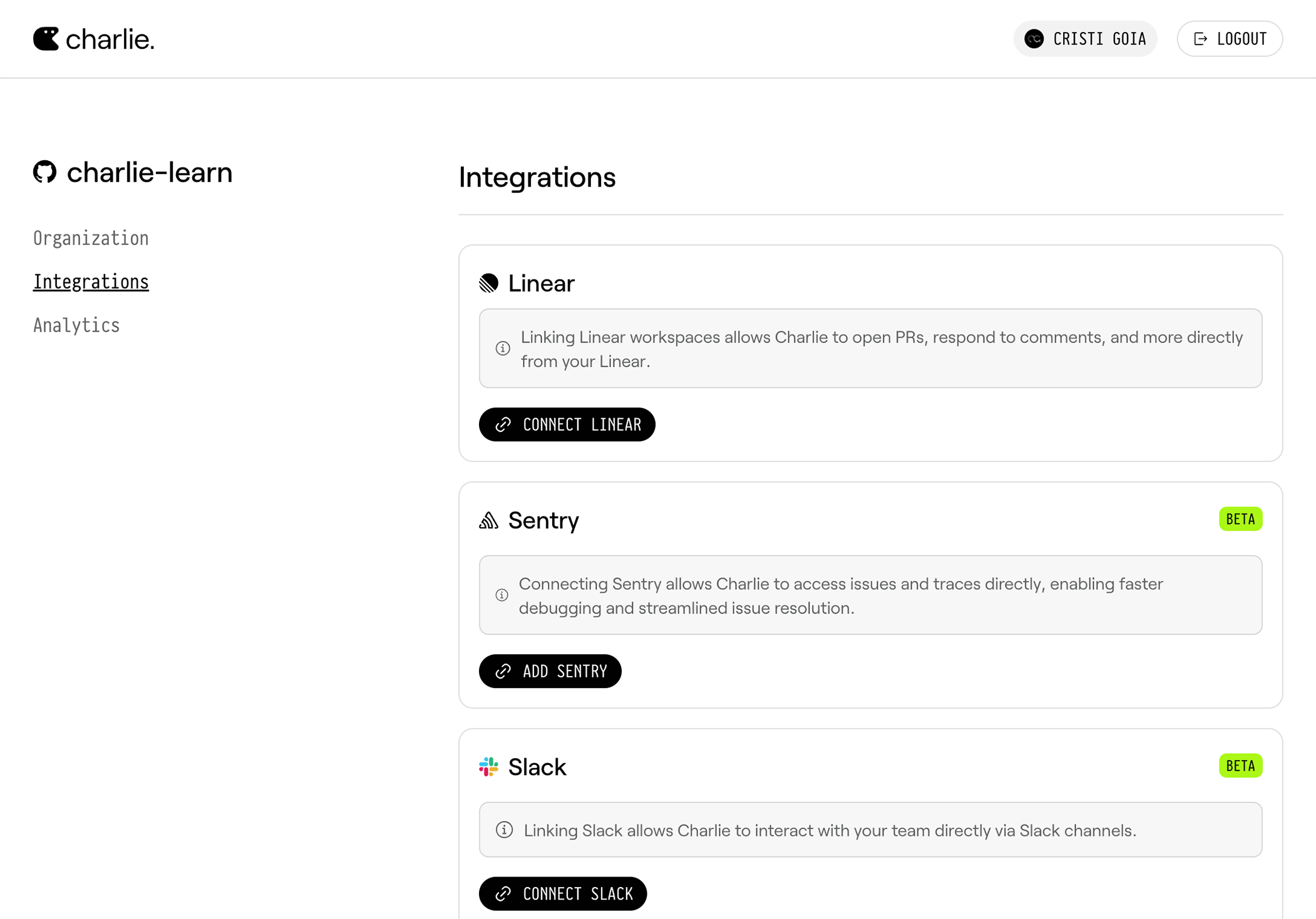
2
Connect Linear Workspace
Click Connect Linear to initiate the integration process.
3
Complete OAuth Connection
Follow the Linear OAuth connection flow to authorize Charlie to access your
Linear workspace.
4
Return to Dashboard
After successfully linking your Linear workspace, you will be redirected back
to the Charlie dashboard.
5
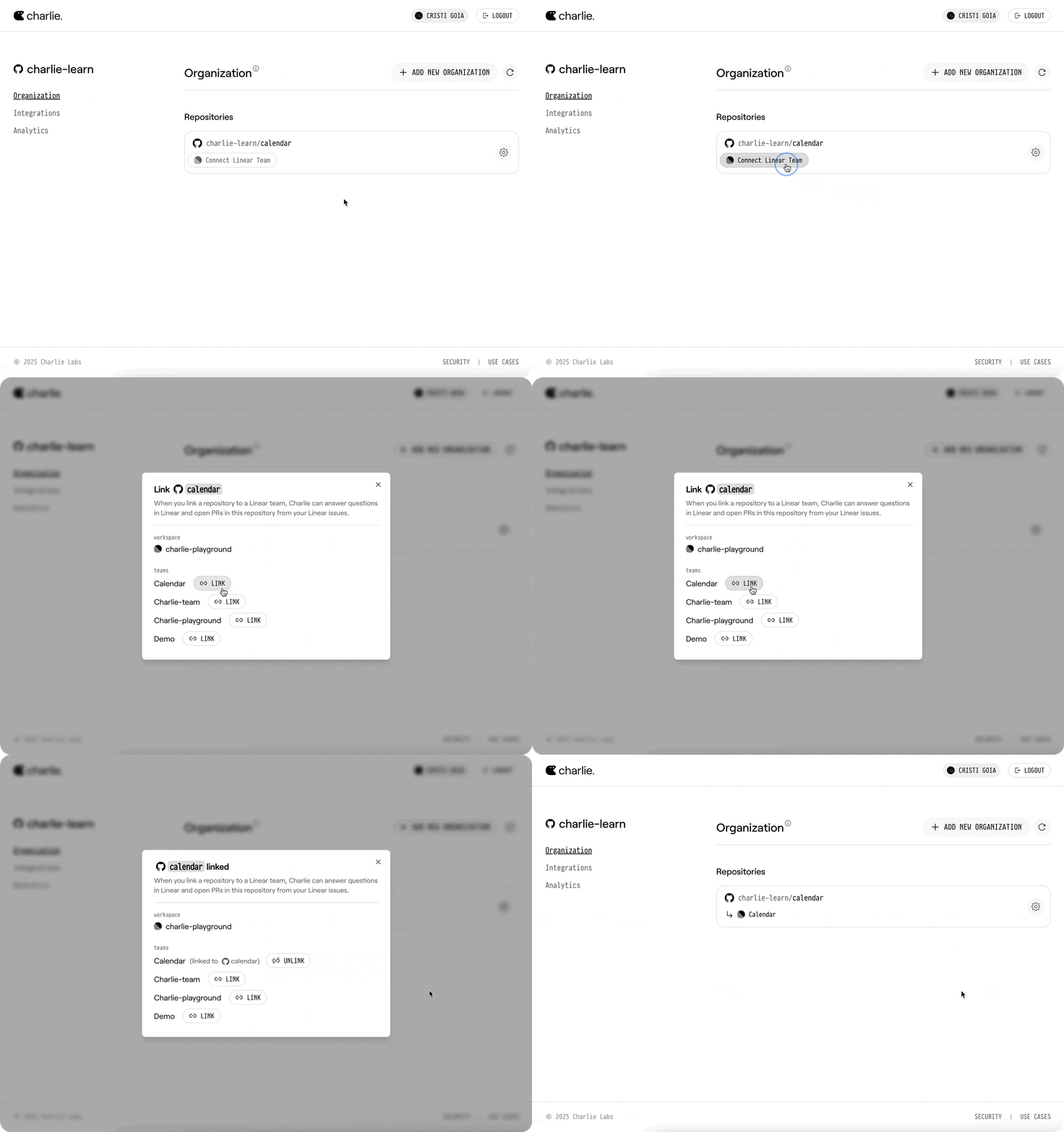
Set Repository Integration Default
Open the relevant repository, select Integration defaults, then choose the Linear team to use for that repository by default. OAuth is workspace-scoped; repository routing is team-specific.