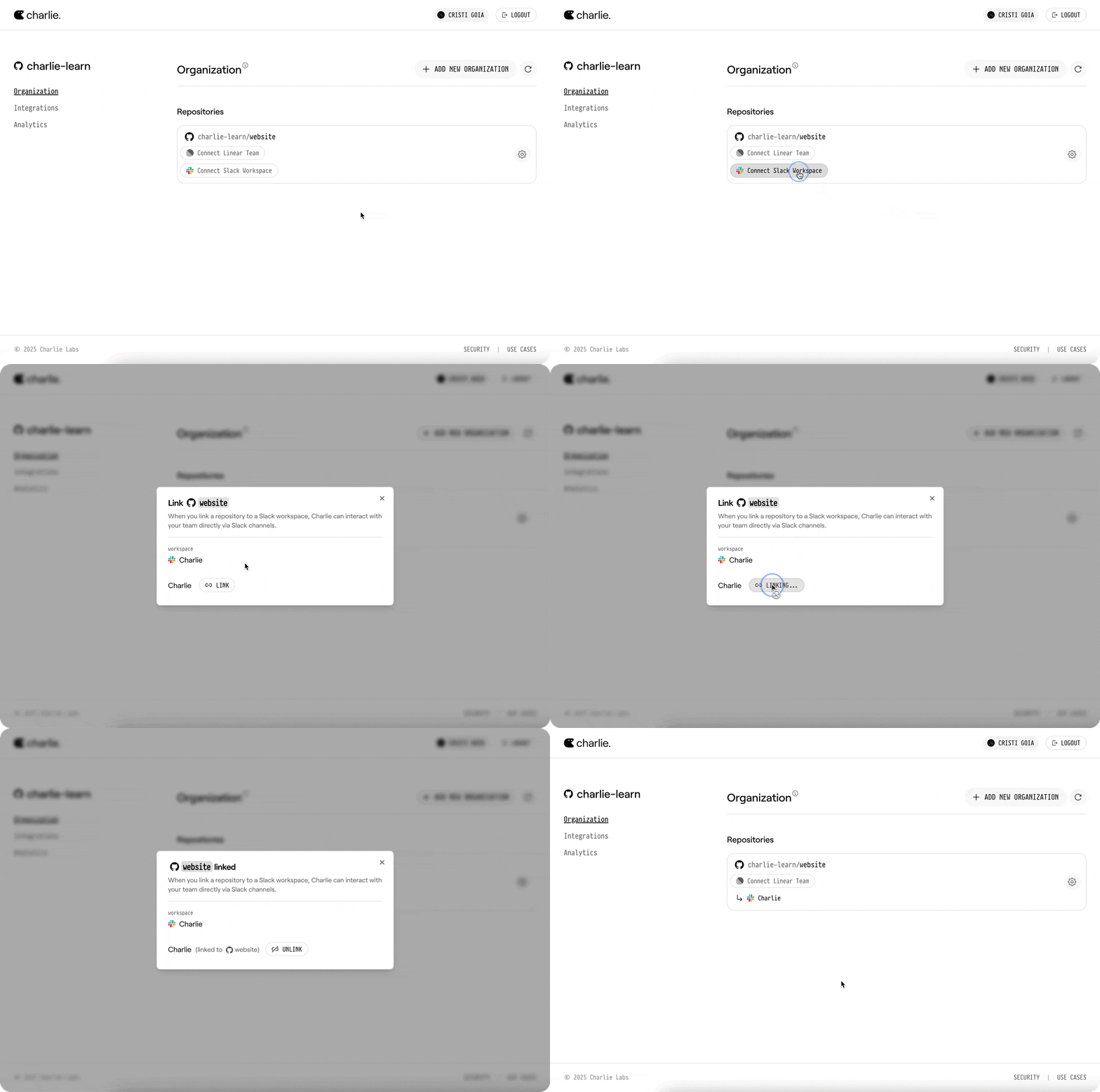
What Charlie can do
With Slack connected, Charlie becomes a teammate in every channel:- Capture a bug or task as a Linear ticket. Mention @Charlie (e.g.,
@Charlie, create a Linear issue with this bug) and he creates the ticket with the full conversation. - Pull rich context to understand the problem. Ask
@Charlie, did we change anything before _X_ that caused this?or drop a Sentry link—Charlie surfaces relevant commits, stack traces, and root-cause details. - Brainstorm and propose a fix plan.
@Charlie, how should we fix this?delivers approaches, edge cases, and sample code blocks. - Open a PR straight from chat.
@Charlie, open a PR to fix thisspins up a branch, commits the patch, and posts the GitHub PR back into the thread. - Summarize the discussion.
@Charlie, summary pleasecondenses the thread into a crisp recap with action items and owners.
Daemons and Slack events
Connected Slack workspaces can also wake daemonwatch conditions. Use this when useful work starts in Slack and should be handled as a repeatable operating role.
Supported routed Slack event families include:
- mentions and thread replies
- broader channel messages
- DMs
watch wording or body policy.
Good daemon patterns for Slack include:
- triaging bug reports or support requests that appear in a shared channel
- summarizing a noisy thread into next actions or a Linear issue
- producing recurring support summaries or channel reports
- keeping Slack-to-issue handoffs clean by filing, linking, and following up on the right issue
watch wording, for example:
Quick Setup
Follow these steps to connect your Slack workspace with Charlie:1
Navigate to Integrations
Go to dash.charlielabs.ai and sign in. Select your organization, then open Integrations.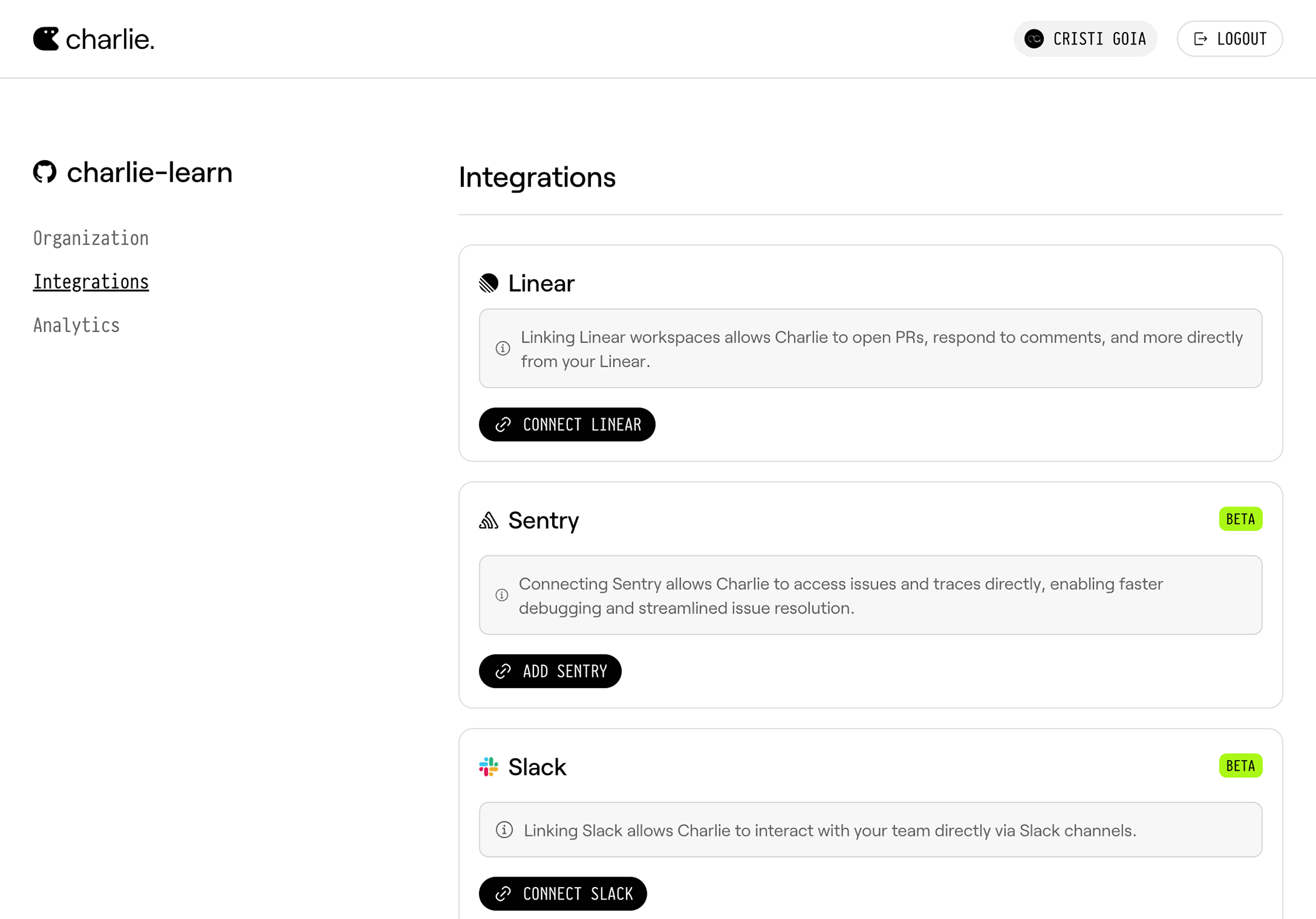
2
Connect Slack Workspace
Click Connect Slack to start the integration process.
3
Complete OAuth Connection
Follow the Slack OAuth flow to authorize Charlie for your workspace.
4
Return to Dashboard
After authorizing, you’ll be redirected back to the Charlie dashboard.
5
Set Repository Integration Default
Open the relevant repository, select Integration defaults, then choose the Slack workspace to use for that repository by default.